Showing posts with label tips. Show all posts
Showing posts with label tips. Show all posts


Facts - Open Source
Design of Sun's UltraSPARC T1 processor is made available under GNU public License (GPL). This is first open source 64-bit processor.
Technical Acronyms
Please send in your list to be added here ....
(In ascending order)
GNU - Gnu's Not Unix
GPL - GNU General Public License
SIP - Session Initiation Protocol
SPARC - Scalable Processor Architecture
(In ascending order)
GNU - Gnu's Not Unix
GPL - GNU General Public License
SIP - Session Initiation Protocol
SPARC - Scalable Processor Architecture
date command in *NIX
How to get yesterday / past / future dates in *NIX
Ref
http://www.cyberciti.biz/tips/linux-unix-get-yesterdays-tomorrows-date.html
Get yesterday date
1)
YESTERDAY=`TZ=aaa24 date +%Y%m%d`
echo $YESTERDAY
2)
in GNU date:
date --date=yesterday
Threads - Solaris
Counting number of threads a process has :
#ps -eLf | grep
or
#prstat
(it shows the NLWP, i.e. number of light weight processes)
#ps -eLf | grep
or
#prstat
(it shows the NLWP, i.e. number of light weight processes)
Use gnome-terminal to automate (Fedora)
Suppose you have to run many applications on terminal (lets say gnome-terminal) and you want to automate this process, You can use command lines options of gnome-terminal.
Example
#gnome-terminal --geometry=80x20+700+0 --title=ping -x ping google.com &
where geometry will decide what will be length and width of your terminal and what will be the position of your terminal.
title sets the title of the terminal
-x is for the command to run
& to run this as background process.
(See man pages of gnome-terminal for more options, you can have tabs and many more options)
Now lets say we want to run following applications viz
1) my server lets say the name is /home/xyz/myServer.exe
2) tail -f /var/log/messages to see the log
3) ping google.com
4) ssh to some remote machine lets say xx.yy.zz.aa
So I will make a script say
automate.sh with following
#cat automate.sh
gnome-terminal --geometry=80x20+0+0 --title=myServer -x ./home/xyz/myServer.exe &
gnome-terminal --geometry=80x20+0+400 --title=logMessages -x tail -f /var/log/messages &
gnome-terminal --geometry=80x20+700+400 --title=ping -x ping google.com &
gnome-terminal --geometry=80x20+700+0 --title=remoteMachine -x ssh root@xx.yy.zz.aa &
Now you can run all the applications with a simple command
#sh automate.sh
Please remember that the opened window will close as soon as the command it is running stops executing, lets say the window/terminal running "tail -f /var/log/messages" will immediately go if you dont have permission to read /var/log/messages
Example
#gnome-terminal --geometry=80x20+700+0 --title=ping -x ping google.com &
where geometry will decide what will be length and width of your terminal and what will be the position of your terminal.
title sets the title of the terminal
-x is for the command to run
& to run this as background process.
(See man pages of gnome-terminal for more options, you can have tabs and many more options)
Now lets say we want to run following applications viz
1) my server lets say the name is /home/xyz/myServer.exe
2) tail -f /var/log/messages to see the log
3) ping google.com
4) ssh to some remote machine lets say xx.yy.zz.aa
So I will make a script say
automate.sh with following
#cat automate.sh
gnome-terminal --geometry=80x20+0+0 --title=myServer -x ./home/xyz/myServer.exe &
gnome-terminal --geometry=80x20+0+400 --title=logMessages -x tail -f /var/log/messages &
gnome-terminal --geometry=80x20+700+400 --title=ping -x ping google.com &
gnome-terminal --geometry=80x20+700+0 --title=remoteMachine -x ssh root@xx.yy.zz.aa &
Now you can run all the applications with a simple command
#sh automate.sh
Please remember that the opened window will close as soon as the command it is running stops executing, lets say the window/terminal running "tail -f /var/log/messages" will immediately go if you dont have permission to read /var/log/messages
gcc - How to find what preprocessor does to a C program
There are gcc options that allow us to do only preprocessing or preprocessing and compiling or all preprocessing, compiling and linking to make an executable. If we need to see what does the compiler does during preprocessing we can ask it to do only preprocessing and see the result to find out what it does in preprocessing. This can be useful in many situations where we need to identify preprocessor errors, in academics etc.
Lets understand this with an example:
I am using Fedora8 with gcc - gcc (GCC) 4.1.2 20070925 (Red Hat 4.1.2-33)
Example contains a C file named "first.c" and a header file named "first.h" as following:
first.c
-------
#include "first.h"
#define MAX 10
int main()
{
int i;
int j;
printf("hello world \n");
i=MAX;
j=MIN;
printf("i - %d and MAX is %d\n",i,MAX);
printf("j - %d and MIN is %d\n",j,MIN);
return 0;
}
----
first.h
----
#ifndef __FIRST
#define __FIRST
#define MIN 5
#include <stdio.h>
#endif
----
if you compile the program and run it you will get
#gcc first.c
#./a.out
hello world
i - 10 and MAX is 10
j - 5 and MIN is 5
What we need to find out here is what preprocessor does to this program, as we all know, preprocessor does include the header file first.h in the program, which internally includes stdio.h (in my case it is /usr/include/stdio.h file), replaces MACROS (MIN and MAX here) with their values. In my case the gcc gives "-E" option for preprocessing only, find out your option by seeing manual page. So I run
#gcc -E first.c > first_only_preprocessor.out
and when you see the output file "first_only_preprocessor.out", you will find out what preprocessor does to our example C file.
Lets see, for example, what it does to our printfs, where we are printing MAX and MIN, I searched MAX and MIN in the output as follows:
# grep 'MIN\|MAX' first_only_preprocessor.out
OR
# gcc -E first.c | grep 'MIN\|MAX'
output is
printf("i - %d and MAX is %d\n",i,10);
printf("j - %d and MIN is %d\n",j,5);
As you see, preprocessor correctly replaces MAX with 10 and MIN with 5 :)
Think on the ideas where you can use this ...
Lets understand this with an example:
I am using Fedora8 with gcc - gcc (GCC) 4.1.2 20070925 (Red Hat 4.1.2-33)
Example contains a C file named "first.c" and a header file named "first.h" as following:
first.c
-------
#include "first.h"
#define MAX 10
int main()
{
int i;
int j;
printf("hello world \n");
i=MAX;
j=MIN;
printf("i - %d and MAX is %d\n",i,MAX);
printf("j - %d and MIN is %d\n",j,MIN);
return 0;
}
----
first.h
----
#ifndef __FIRST
#define __FIRST
#define MIN 5
#include <stdio.h>
#endif
----
if you compile the program and run it you will get
#gcc first.c
#./a.out
hello world
i - 10 and MAX is 10
j - 5 and MIN is 5
What we need to find out here is what preprocessor does to this program, as we all know, preprocessor does include the header file first.h in the program, which internally includes stdio.h (in my case it is /usr/include/stdio.h file), replaces MACROS (MIN and MAX here) with their values. In my case the gcc gives "-E" option for preprocessing only, find out your option by seeing manual page. So I run
#gcc -E first.c > first_only_preprocessor.out
and when you see the output file "first_only_preprocessor.out", you will find out what preprocessor does to our example C file.
Lets see, for example, what it does to our printfs, where we are printing MAX and MIN, I searched MAX and MIN in the output as follows:
# grep 'MIN\|MAX' first_only_preprocessor.out
OR
# gcc -E first.c | grep 'MIN\|MAX'
output is
printf("i - %d and MAX is %d\n",i,10);
printf("j - %d and MIN is %d\n",j,5);
As you see, preprocessor correctly replaces MAX with 10 and MIN with 5 :)
Think on the ideas where you can use this ...
Linux Desktop Shortcut Keys
General Shortcut Keys
Alt + F1 - Opens the Applicantions Menu
Alt + F2 - Displays the Run Application dialog
Print - Screen Takes a screenshot
Alt + Print - Screen Takes a screenshot of the window that has focus
Ctrl + Alt + right arrow - Switches to the workspace to the right of the current workspace
Ctrl + Alt + left arrow - Switches to the workspace to the left of the current workspace
Ctrl + Alt + up arrow - Switches to the workspace above the current workspace
Ctrl + Alt + down arrow - Switches to the workspace below the current workspace
Ctrl + Alt + d - Minimizes all windows, and gives focus to the desktop
F1 - Starts the online help browser, and displays appropriate online Help
Alt + F1 - Opens the Applicantions Menu
Alt + F2 - Displays the Run Application dialog
Print - Screen Takes a screenshot
Alt + Print - Screen Takes a screenshot of the window that has focus
Ctrl + Alt + right arrow - Switches to the workspace to the right of the current workspace
Ctrl + Alt + left arrow - Switches to the workspace to the left of the current workspace
Ctrl + Alt + up arrow - Switches to the workspace above the current workspace
Ctrl + Alt + down arrow - Switches to the workspace below the current workspace
Ctrl + Alt + d - Minimizes all windows, and gives focus to the desktop
F1 - Starts the online help browser, and displays appropriate online Help
Linux tips for newbies
1) Dont remember the command
#apropos "list directory"
2) use tab to complete the type, dont type all the words
3) to goto last dir
#cd -
4) to goto home dir
#cd ~
5) want to find that file
#locate filename
6) for tips on VI editor, see VI post
7) report file system disk space usage
#df -kh
8) to get/set hard disk parameters
#hdparm -t /dev/sda5
replace /dev/sda5 with the name of your disk
9) Use seq command to generate sequences
# seq 1 5
output will be
1
2
3
4
5
This you can use in many places including scripts, eg
# for i in `seq 1 5`; do echo "i is $i" ; done
output will be
i is 1
i is 2
i is 3
i is 4
i is 5
10) Sending mail through linux command line
First check, whether sendmail is running
#/etc/init.d/sendmail status
if not run it via (you need to be root for this)
#/etc/init.d/sendmail start
then, send mails using either mail or mutt command as below:
# echo "body of the mail" | mail -s "subject of the mail" toAddress
Give recipient's mail id in place of toAddress
As for body of the mail, you can also redirect from a file, like
# mail -s "subject of the mail" toaddress < body_mail.txt
if you want to send file as attachment, you can use mutt instead
# echo "body of the mail" | mutt -s "subject of the mail" -a fileToAttach.txt toAddress
Give recipient's mail id in place of toAddress
#apropos "list directory"
2) use tab to complete the type, dont type all the words
3) to goto last dir
#cd -
4) to goto home dir
#cd ~
5) want to find that file
#locate filename
6) for tips on VI editor, see VI post
7) report file system disk space usage
#df -kh
8) to get/set hard disk parameters
#hdparm -t /dev/sda5
replace /dev/sda5 with the name of your disk
9) Use seq command to generate sequences
# seq 1 5
output will be
1
2
3
4
5
This you can use in many places including scripts, eg
# for i in `seq 1 5`; do echo "i is $i" ; done
output will be
i is 1
i is 2
i is 3
i is 4
i is 5
10) Sending mail through linux command line
First check, whether sendmail is running
#/etc/init.d/sendmail status
if not run it via (you need to be root for this)
#/etc/init.d/sendmail start
then, send mails using either mail or mutt command as below:
# echo "body of the mail" | mail -s "subject of the mail" toAddress
Give recipient's mail id in place of toAddress
As for body of the mail, you can also redirect from a file, like
# mail -s "subject of the mail" toaddress < body_mail.txt
if you want to send file as attachment, you can use mutt instead
# echo "body of the mail" | mutt -s "subject of the mail" -a fileToAttach.txt toAddress
Give recipient's mail id in place of toAddress
*NIX Networking Tools
Ref : wikipedia, essential-snmp-second-edition
These commands are just an overview, see man pages for more options.
traceroute
to determine the route taken by packets across an IP network
#traceroute www.elitecore.com
nslookup/dig
to get IP address information on a host, and vice versa. dig stands for Domain Internet Groper, nslookup is now deprecated, dig –x is used to get reverse lookup
# nslookup www.google.com
#dig -x ip address
gets u reverse name lookup
whois
to obtain domain name registrar information
#whois www.elitecore.com
Ethereal
Besides GUI tool, we can use the same as command line utility also. It is used to capture network traffic e.g, to get network traffic on some port say 161 (SNMP Port) :
#tethereal -i lo -V -F libpcap -f "port 161"
ifconfig
To get machine's network configuration
#ifconfig
arp
Address Resolution Protocol - method for finding a host's hardware address when only its network layer address is known
#arp –a
ping
for network troubleshooting – uses ICMP packets
#ping google.com
Unknown Host - DNS Problem
network unreachable - networking problems
Timeout - May be the remote machine is not turned on
*If you want to find out Mac address of any machine, just ping to that machine and see the arp table using arp –a command
arping
use when ping doesnt work, sometimes firewall settings disable ICMP packets, to verify the reachability
we can use arping also
#arping ip-address
(ref. - http://www.linux.com/feature/50596)
netstat
Obtains NETwork STATistics from kernel, can be used to find problems in the network and determine the amount of traffic on the network. It displays network connections, routing tables and network interface statistics
#netstat –rn
(-rn for seeing routing table)
to see all connections and listening ports, use
#netstat –a
(see man page for more info)
These commands are just an overview, see man pages for more options.
traceroute
to determine the route taken by packets across an IP network
#traceroute www.elitecore.com
nslookup/dig
to get IP address information on a host, and vice versa. dig stands for Domain Internet Groper, nslookup is now deprecated, dig –x is used to get reverse lookup
# nslookup www.google.com
#dig -x ip address
gets u reverse name lookup
whois
to obtain domain name registrar information
#whois www.elitecore.com
Ethereal
Besides GUI tool, we can use the same as command line utility also. It is used to capture network traffic e.g, to get network traffic on some port say 161 (SNMP Port) :
#tethereal -i lo -V -F libpcap -f "port 161"
ifconfig
To get machine's network configuration
#ifconfig
arp
Address Resolution Protocol - method for finding a host's hardware address when only its network layer address is known
#arp –a
ping
for network troubleshooting – uses ICMP packets
#ping google.com
Unknown Host - DNS Problem
network unreachable - networking problems
Timeout - May be the remote machine is not turned on
*If you want to find out Mac address of any machine, just ping to that machine and see the arp table using arp –a command
arping
use when ping doesnt work, sometimes firewall settings disable ICMP packets, to verify the reachability
we can use arping also
#arping ip-address
(ref. - http://www.linux.com/feature/50596)
netstat
Obtains NETwork STATistics from kernel, can be used to find problems in the network and determine the amount of traffic on the network. It displays network connections, routing tables and network interface statistics
#netstat –rn
(-rn for seeing routing table)
to see all connections and listening ports, use
#netstat –a
(see man page for more info)
using vi's .exrc file
These useful commands are taken from various sources including net, books. Hopefully it will be useful:
(Note : ~/.exrc file : is the file for making permanent settings to your vi editor, if you place the following commands in this file, these commands will be available to all your vi sessions.)
Commands
1) :abb - for abbreviation
eg.
#:abb etl Elitecore Technologies Limited, Ahmedabad
so whenever u type etl and press enter, space or tab, "etl" will be replaced by "Elitecore Technologies Limited, Ahmedabad"
I use it to create template C and C++ programs, like
#:abb CPP #include<iostream>^M using namespace std;^M int main()^M {^M return0;^M }
(here ^M is for new line, NOTE : make sure u dont type ^M, for ENTER u have to
a) ctrl+v
b) press ENTER
it will display like ^M as above but it means ENTER/new line)
So, now every time I need a C++ template, I just type CPP and press enter, space or TAB,
It gives me a nice C++ program template to work on.
You can use the same for similar purpose.
2) :map - is for mapping some command to some shortcut
eg
the vi command :set number is used to show numbers along the lines of the file, lets say we want to give it a short cut, say F2, meaning when we type F2, it should run the command :set number, To map this command to shortcut key, the vi setting will be
#:map #2 :set number^M
(Note : remember ^M comment in above command)
same for :set nonumber (lets say to F3)
#:map #3 :set nonumber^M
3) set tabstop=2
this is for TAB's setting, I want TAB to be equal to 2 spaces, so I set it to 2.
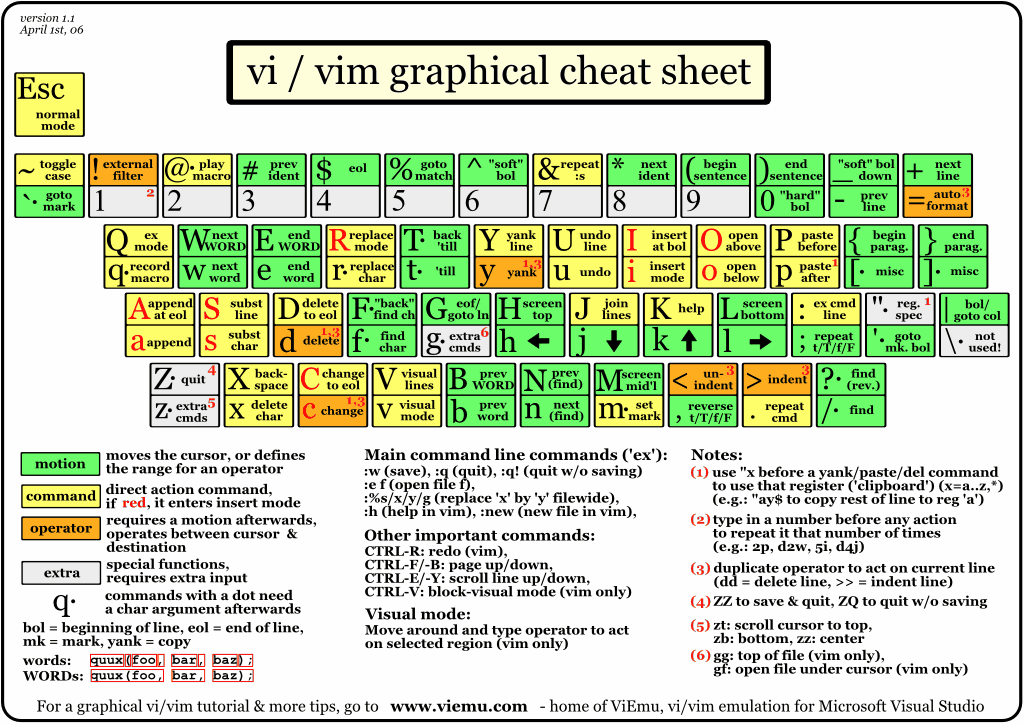
vi quick reference
(Note : ~/.exrc file : is the file for making permanent settings to your vi editor, if you place the following commands in this file, these commands will be available to all your vi sessions.)
Commands
1) :abb - for abbreviation
eg.
#:abb etl Elitecore Technologies Limited, Ahmedabad
so whenever u type etl and press enter, space or tab, "etl" will be replaced by "Elitecore Technologies Limited, Ahmedabad"
I use it to create template C and C++ programs, like
#:abb CPP #include<iostream>^M using namespace std;^M int main()^M {^M return0;^M }
(here ^M is for new line, NOTE : make sure u dont type ^M, for ENTER u have to
a) ctrl+v
b) press ENTER
it will display like ^M as above but it means ENTER/new line)
So, now every time I need a C++ template, I just type CPP and press enter, space or TAB,
It gives me a nice C++ program template to work on.
You can use the same for similar purpose.
2) :map - is for mapping some command to some shortcut
eg
the vi command :set number is used to show numbers along the lines of the file, lets say we want to give it a short cut, say F2, meaning when we type F2, it should run the command :set number, To map this command to shortcut key, the vi setting will be
#:map #2 :set number^M
(Note : remember ^M comment in above command)
same for :set nonumber (lets say to F3)
#:map #3 :set nonumber^M
3) set tabstop=2
this is for TAB's setting, I want TAB to be equal to 2 spaces, so I set it to 2.
vi quick reference
Subscribe to:
Posts (Atom)